
Glbtomold
Open 3D studio
English

Format workflow

A practical glb to fbx conversion workflow

Use glb to fbx conversion when a lightweight, web-ready asset needs to move into software that expects FBX for animation, scene assembly, or downstream review.

Review before export
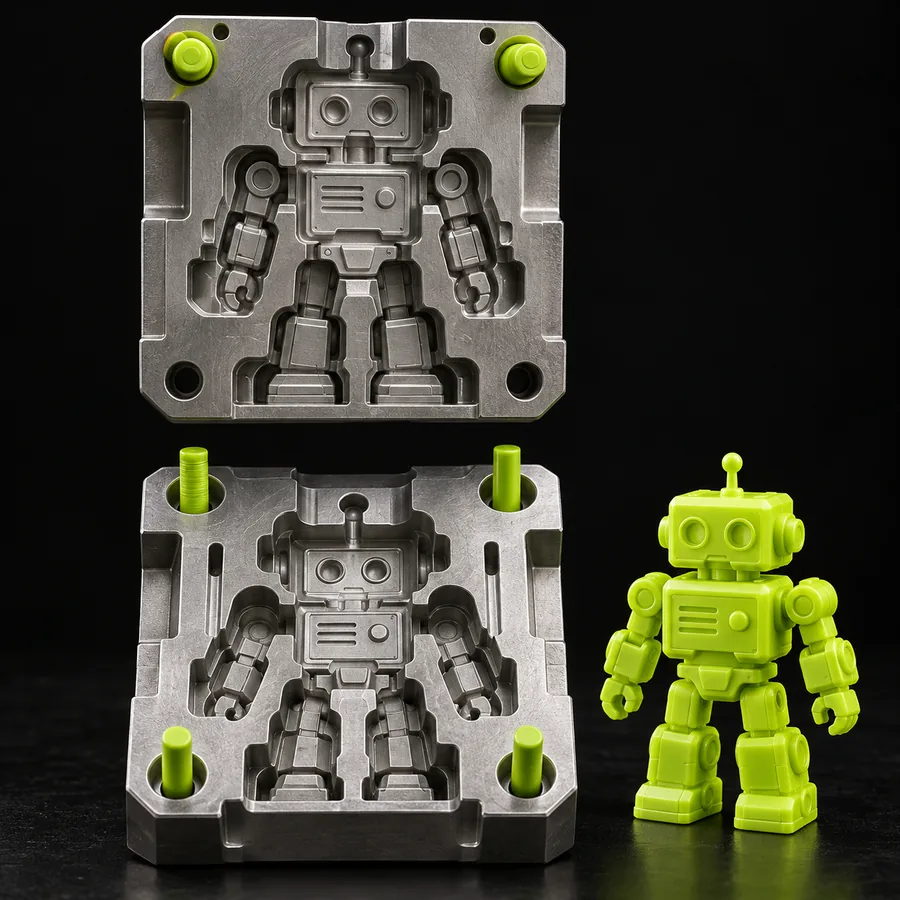
3D asset prepared for format conversion

Tool preview

The conversion tool block

Compare the source package with the prepared export before opening it in a desktop application. The divider highlights what to inspect first: shape, surfaces, and scene organization.

GLB source asset in a conversion workspace FBX export preview of the same 3D asset GLB source FBX export

Drag the divider or use the arrow keys to inspect the same asset before and after export.

GLB sourceFBX export

Format fit

GLB and FBX side by side

The best choice depends on where the asset is going next. This comparison separates packaging, scene data, materials, and workflow compatibility without treating either format as universally better.

GLB
FBX

Typical role

GLB

Compact delivery and web-ready 3D packages

FBX

Interchange for animation, DCC, and game workflows

Container style

GLB

Binary glTF package

FBX

Autodesk FBX scene format

Geometry

GLB

Meshes and vertex attributes

FBX

Meshes, transforms, and scene relationships

Materials

GLB

PBR-oriented material data

FBX

Material and shading data interpreted by the destination app

Textures

GLB

Can be bundled inside one file

FBX

May be embedded or referenced depending on export settings

Animation

GLB

Supports glTF animation tracks

FBX

Commonly used for richer animation and rig interchange

Hierarchy

GLB

Node-based scene structure

FBX

Scene, object, and controller structures vary by importer

Best review step

GLB

Check package contents and texture references

FBX

Open in the target application and inspect the scene

Prompt examples

Conversion prompts that lead to useful results

A specific instruction gives the conversion workflow something concrete to preserve. These examples focus on hierarchy, materials, and animation readiness.

prompts.log
  1. 1
    Convert this GLB mechanical part to FBX, preserve object names, keep separate meshes, and retain visible metallic materials.
    Industrial asset conversion Separate meshes · material review
  2. 2
    Convert this GLB character to FBX with the existing armature, animation clips, node hierarchy, and texture assignments preserved.
    Character scene conversion Armature · animation clips
  3. 3
    Convert this GLB interior scene to FBX, keep object hierarchy and light-related names, and flag textures that need relinking.
    Scene interchange Hierarchy · texture audit
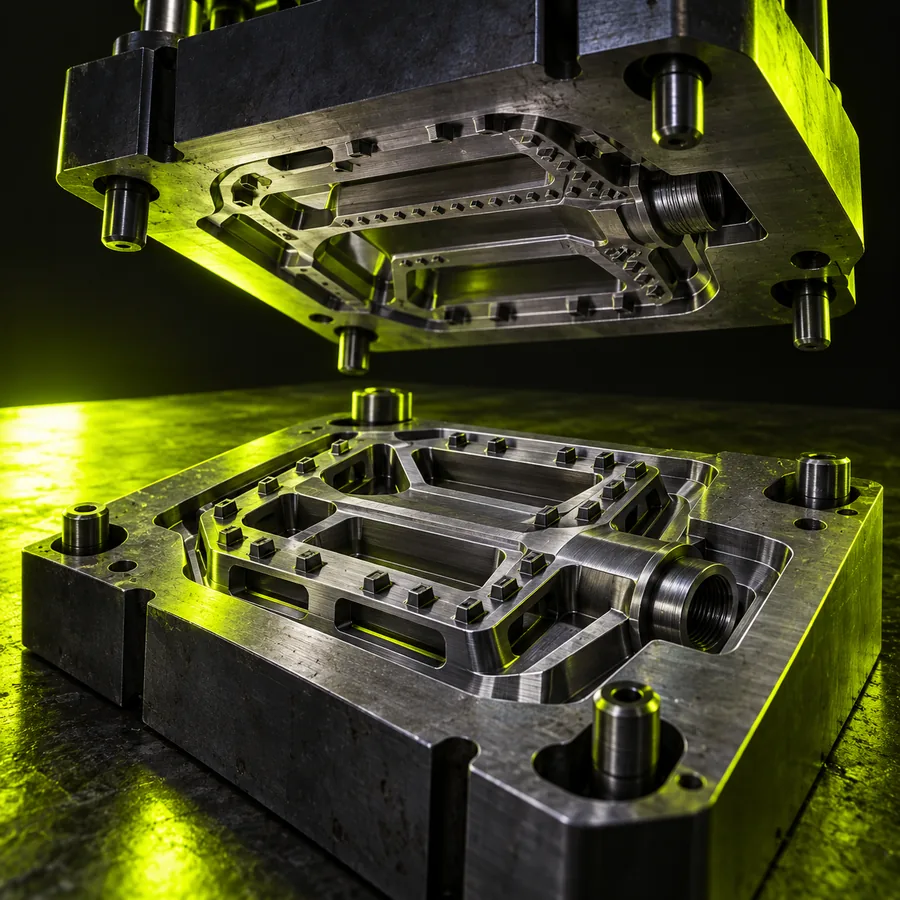
Mechanical 3D part prepared for FBX export 1 CAD handoff
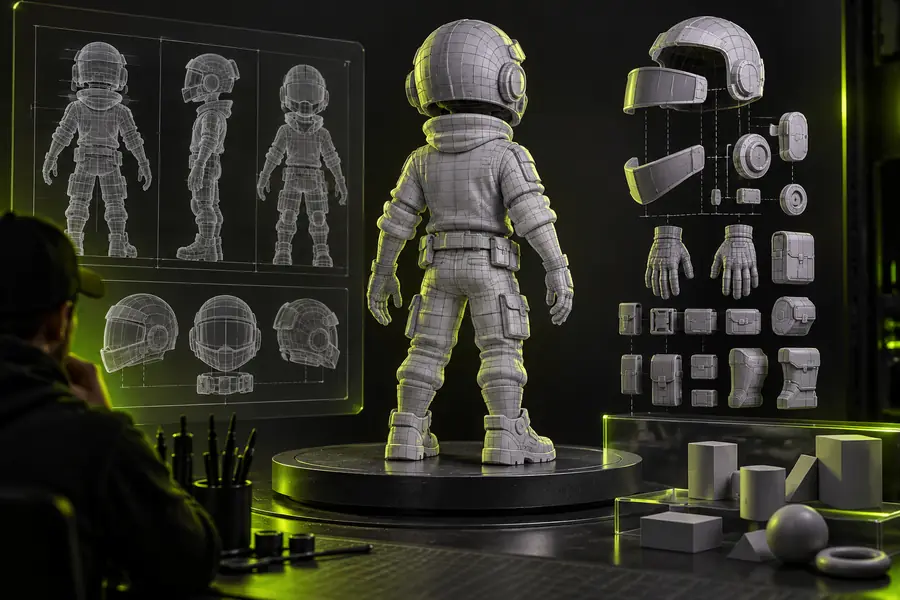
Character model prepared for FBX export 2 Animation
Architectural scene prepared for FBX export 3 Scene review

Replace the subject and preservation rules with the exact checks your destination software requires.

Workflow users

Who uses FBX exports?

Different teams need different checks after conversion. Choose the handoff that matches your next application and validate the asset there.

Technical artist

A game scene arrives as a single GLB package but needs a familiar interchange format for rigging and scene cleanup.

The FBX export provides a reviewable hierarchy, separate objects, and a clearer handoff into animation tools.

glb to obj

CAD and visualization team

A web-ready product preview must be inspected in a desktop modeling environment before a presentation or manufacturing review.

The team can compare geometry, materials, and naming before committing the asset to a larger scene.

glb to stl

Character artist

A skinned character needs to move from a compact delivery package into a rigging or motion workflow.

The conversion brief calls out armatures, animation clips, and texture assignments instead of treating the file as geometry only.

glb to obj

Pipeline engineer

A mixed asset library needs a repeatable export note so artists know what to verify after each conversion.

A consistent request records hierarchy, embedded media, material interpretation, and the destination application.

glb to stl

Format history

How GLB and FBX got here

The two formats come from different parts of the 3D ecosystem. Their history explains why conversion often requires a deliberate verification pass.

  1. FBX enters the production pipeline

    FBX begins as an interchange format associated with Kaydara and later becomes widely used across Autodesk-centered animation and scene workflows.

  2. glTF work begins

    The Khronos-backed glTF effort focuses on efficient transmission and loading of 3D scenes, especially for real-time and web experiences.

  3. glTF 2.0 formalizes PBR delivery

    glTF 2.0 establishes a modern runtime asset model with physically based materials, node hierarchies, meshes, and animation support.

  4. GLB becomes the single-file option

    The binary GLB container packages glTF JSON and related binary data together, making distribution simpler than a folder of separate assets.

  5. Conversion bridges delivery and production

    Teams still move between the compact GLB delivery model and FBX-centered production tools when an asset needs editing, animation, or scene interchange.

Output gallery

What to inspect in converted outputs

These examples show the checks that matter after export: object separation, texture handling, and whether the destination application reads the scene as intended.

  • Converted mechanical asset with separate scene objects Object structure
    1
    Mechanical asset with named components preserved for inspection Input: GLB mechanical part · Check: object separation
  • Converted animated character asset Animation
    2
    Character export prepared for an animation and rigging review Input: GLB character · Check: armature and clips
  • Converted interior scene with material review Texture audit
    3
    Interior scene checked for hierarchy and texture references Input: GLB interior · Check: materials and paths

Next handoff

Move the asset into its next tool

Start with the destination application, state what must survive the conversion, and inspect the resulting FBX before building on it. A precise brief makes the export easier to review.

Start conversion
  • Preserve the data your workflow actually needs
  • Review hierarchy, materials, and media references
  • Prepare a clearer handoff for the next 3D tool

Variant FAQ

Conversion questions answered

Open the conversion workflow, provide the GLB asset, and specify the destination requirements such as hierarchy, materials, textures, or animation. After the FBX is produced, open it in the software that will use it and check the scene rather than relying only on the export completing successfully.

Textures can be preserved when the source contains usable image data and the export workflow supports the required material setup. Always check whether images are embedded or referenced, then confirm that the destination application can resolve those references.

Animation and rig data may transfer when they are present in the GLB and supported by the conversion path. Verify the armature, bone orientation, animation clips, and playback behavior in the target application because different tools interpret scene data differently.

Differences usually come from material interpretation, texture paths, coordinate systems, smoothing, scale, or unsupported scene features. Compare the mesh first, then inspect transforms, normals, materials, and external media references in the application that opens the FBX.

Open 3D studio
Open 3D studio