A GLB is not a saved Blender project
Importing one does not restore a .blend file's modifier stack, procedural node setup, collections, or editing history.
Workaround
Ask for the original .blend file if those editable construction details matter.
Format workflow
Blender can import and export GLB through its glTF 2.0 tools. This guide separates what you can inspect and change in Blender from what a GLB can actually retain when you export it.
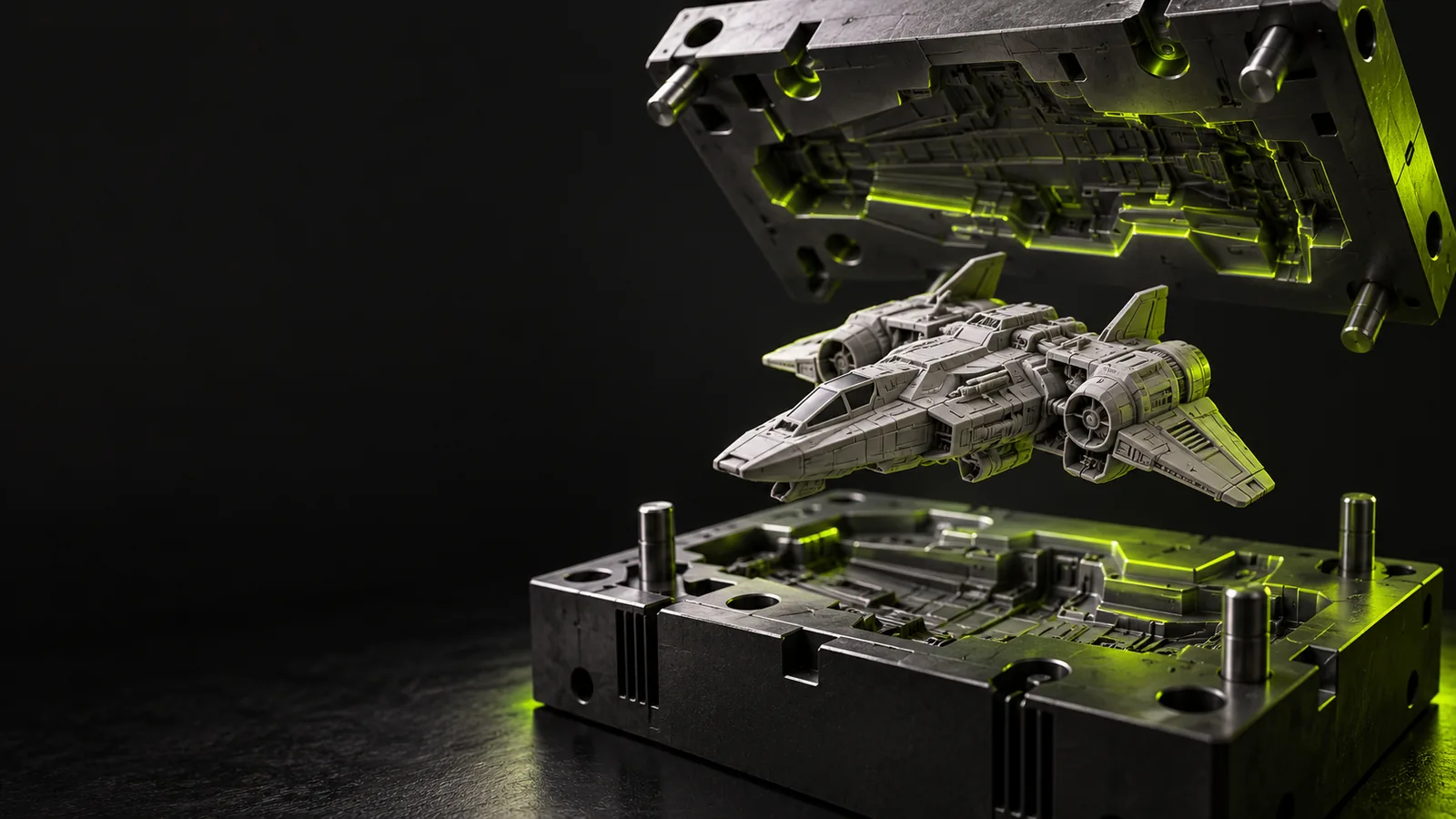
Have the source GLB and a recent Blender installation ready. Keep an untouched copy of the file so you can compare the imported result with the original.
Importing one does not restore a .blend file's modifier stack, procedural node setup, collections, or editing history.
Workaround
Ask for the original .blend file if those editable construction details matter.
A model that looks closed in the viewport may contain gaps, overlapping faces, or non-manifold edges.
Workaround
Check mesh connectivity and wall thickness before using the geometry for fabrication.
GLB uses glTF material conventions; a complex Blender shader cannot be assumed to survive a round trip unchanged.
Workaround
Inspect the imported material and verify the exported file in a separate GLB viewer.
Use this sequence when you need to edit a GLB in Blender and deliver another GLB. Check the result rather than treating a successful export as proof that every detail survived.
In Blender, choose File, Import, glTF 2.0 and select the .glb file. Frame the imported objects in the viewport, then check the Outliner for the objects that arrived.
Check scale, orientation, face normals, mesh openings, materials, and any animation you expect to keep. Save your work as a .blend file before making substantial edits; that preserves Blender-specific changes for later revision.
Choose File, Export, glTF 2.0, select GLB as the format, and review the export settings for your Blender version. Export to a new filename, reopen that GLB, and compare the geometry and appearance with your working scene.
The next step depends on whether you need a different exchange format, a printable mesh, or simply a way to inspect the source.
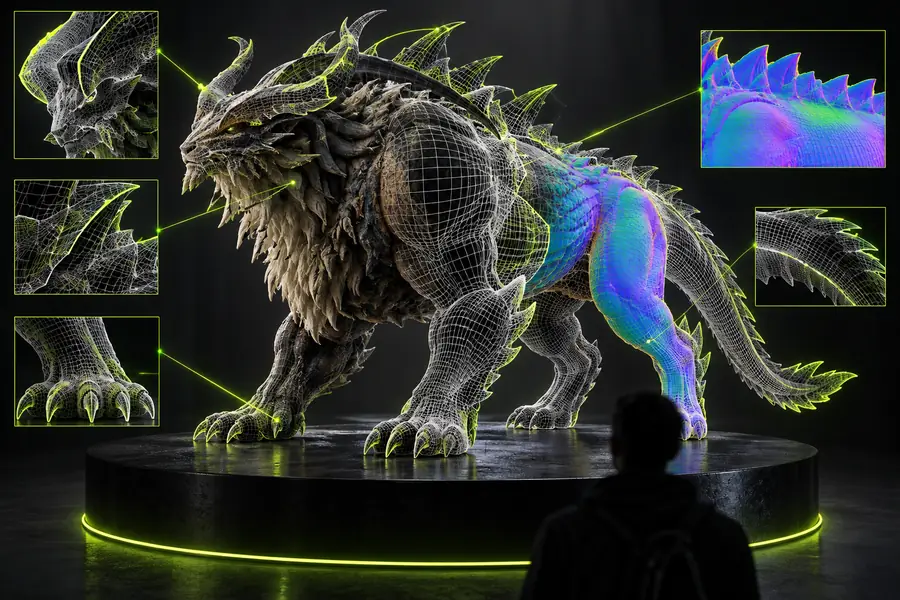 Imported GLB
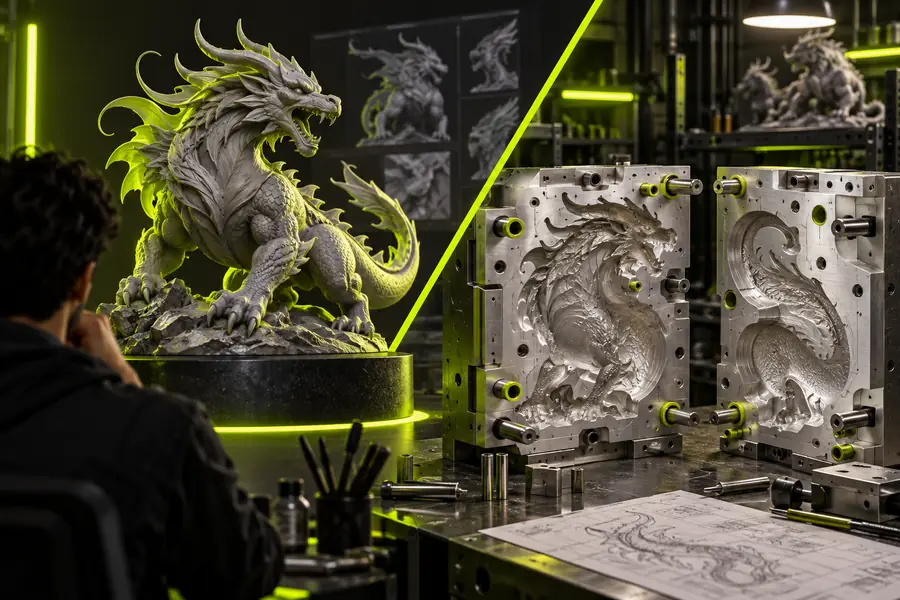 Downstream geometry check
A Blender scene and a GLB serve different purposes. Use the working file for editing; use the exported file to test what a recipient will receive.
Main purpose
Blender working scene
Keep an editable project for further work
Exported GLB
Exchange a packaged glTF 2.0 asset
File extension
Blender working scene
.blend
Exported GLB
.glb
Mesh geometry
Blender working scene
Editable with Blender's modeling tools
Exported GLB
Stored as exported mesh data
Materials
Blender working scene
Can use Blender-specific shader setups
Exported GLB
Limited to material properties the exporter can represent in glTF
Modifiers
Blender working scene
Can remain in an editable stack
Exported GLB
Does not store Blender's editable modifier stack
Textures
Blender working scene
May depend on image files or packed project data
Exported GLB
Supported image data can be packaged in the GLB
Verification
Blender working scene
Inspect the working scene in Blender
Exported GLB
Reimport or open the exported asset separately
A clean viewport does not guarantee a clean mesh, and a successful GLB export does not preserve every Blender feature. If the destination is a physical mold, inspect the surface for closure, thickness, and manufacturability in an appropriate modeling workflow. Glbtomold links to an industrial 3D studio you can explore for that next stage; check its current capabilities against your project before relying on it.
Explore industrial studioChoose File, Import, glTF 2.0, then select your .glb file. If nothing appears, check the Outliner and frame the imported objects in the viewport before assuming the import failed.
Yes. After import, you can edit the meshes and other supported scene elements that arrived in Blender. Save a .blend working copy, because the GLB does not retain Blender's full project structure or editing history.
Use File, Export, glTF 2.0 and choose GLB as the format. Review the available export settings in your Blender version, save to a new file, and reopen that file to check the result.
Blender-specific shaders, procedural effects, and unsupported features may not translate directly to glTF materials or scene data. Compare the imported source, your working scene, and the exported GLB to locate where the difference appeared.
No. A GLB may contain a visually convincing surface that still has holes, intersecting faces, or unsuitable wall thickness. Inspect and repair the geometry for the intended manufacturing process before treating it as printable.