Glbtomold
Open 3D studio
English

Mold planning

Can you go from glb to mold online free?

A GLB can show the shape you want to reproduce, but a mold needs more than a visible surface. Check the mesh, choose a parting direction, and confirm what an online tool actually lets you export before committing to fabrication.

Check available tools and export options
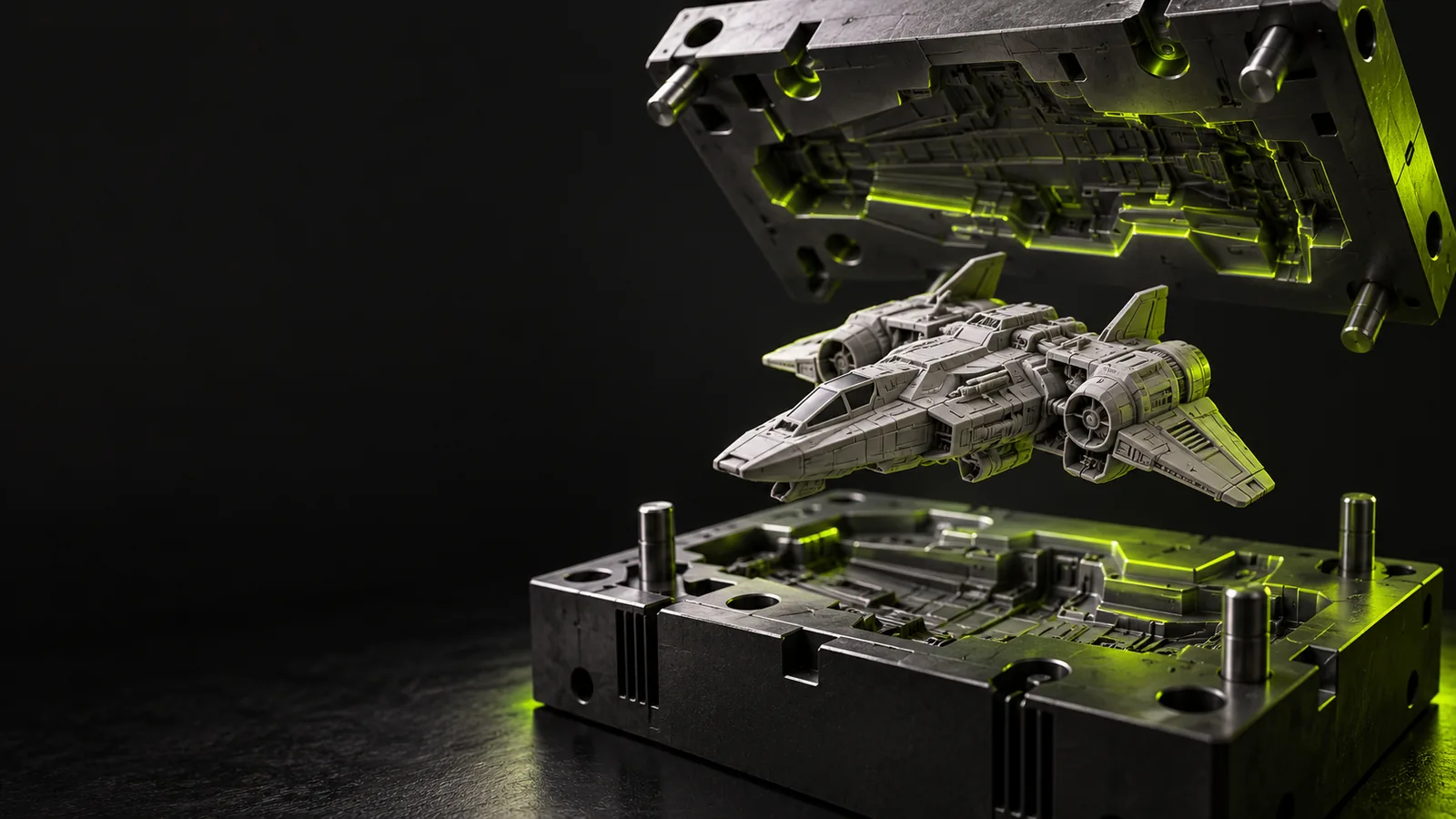
Three-dimensional form shown as a reference for planning a mold

Three checks between a model and a mold

The useful online workflow separates mesh inspection, mold planning, and export verification. A tool that handles one of these stages may not handle all three.

  1. 1

    Inspect the source mesh

    Open the GLB and look for missing surfaces, thin walls, disconnected pieces, and decorative geometry that should not appear in the cavity. A model that looks complete in a viewer can still have gaps that prevent a reliable mold operation.

  2. 2

    Plan the release

    Choose the direction in which the object should leave the mold. Mark likely undercuts, decide whether one or more mold parts are needed, and allow for the physical process you intend to use. These choices cannot be inferred safely from the file extension.

  3. 3

    Check the deliverable

    Confirm that the chosen tool can create the geometry and provide a file suitable for your next step. A preview or rendered image is useful for discussion, but it is not automatically a printable or machinable mold.

Follow the next step your file needs

If the source will not open, start with inspection. If you need a different mesh format before modeling the cavity, choose that conversion deliberately rather than assuming it creates the mold.

Where an online route can stop short

The word “free” describes an access expectation, not a guarantee that every operation or export is available without charge. Verify the tool's current terms before investing work.

No guaranteed free mold export

This page cannot establish that a particular online service provides mold generation and downloadable production geometry at no cost. Availability and restrictions can change.

Workaround

Check the service's current export options and terms with a small test object before preparing a full project.
A visible GLB is not necessarily a solid

Overlapping shells, open edges, and non-manifold areas may make a cavity subtraction fail even when the model renders normally.

Workaround

Inspect and repair the mesh in a suitable modeling tool, then test whether it behaves as a closed volume.

Automatic splitting cannot judge every undercut

A convincing on-screen parting line may still trap the cast part or leave fragile mold sections. Material and removal direction affect the answer.

Workaround

Review the parting plan against the intended casting material and make a physical test when practical.

A preview is not a fabrication check

An attractive rendering does not confirm wall thickness, alignment features, venting, or machine-compatible output.

Workaround

Validate the exported geometry in the software used for printing or machining before fabrication.

Compare a preview with a usable mold file

Use these attributes to evaluate a proposed result. The distinction matters whether you work in a browser or finish the design in desktop software.

Visual model or preview
Fabrication-ready mold design

Primary purpose

Visual model or preview

Shows the intended object or a mold concept

Fabrication-ready mold design

Defines the physical cavity and surrounding mold parts

Mesh condition

Visual model or preview

May render despite gaps or overlapping surfaces

Fabrication-ready mold design

Requires geometry suitable for the chosen modeling and fabrication steps

Parting strategy

Visual model or preview

May show a suggested split

Fabrication-ready mold design

Accounts for release direction and undercuts

Clearance

Visual model or preview

Not established by appearance alone

Fabrication-ready mold design

Set for the material, fit, and production method

Additional features

Visual model or preview

May omit alignment and filling details

Fabrication-ready mold design

Includes needed registration, fill, and vent features

Output test

Visual model or preview

Can be judged visually

Fabrication-ready mold design

Must be checked in the intended print or machining workflow

Free-access question

Visual model or preview

A viewable result may be available

Fabrication-ready mold design

Editing and export permissions must be verified separately

See the difference a mold plan must address

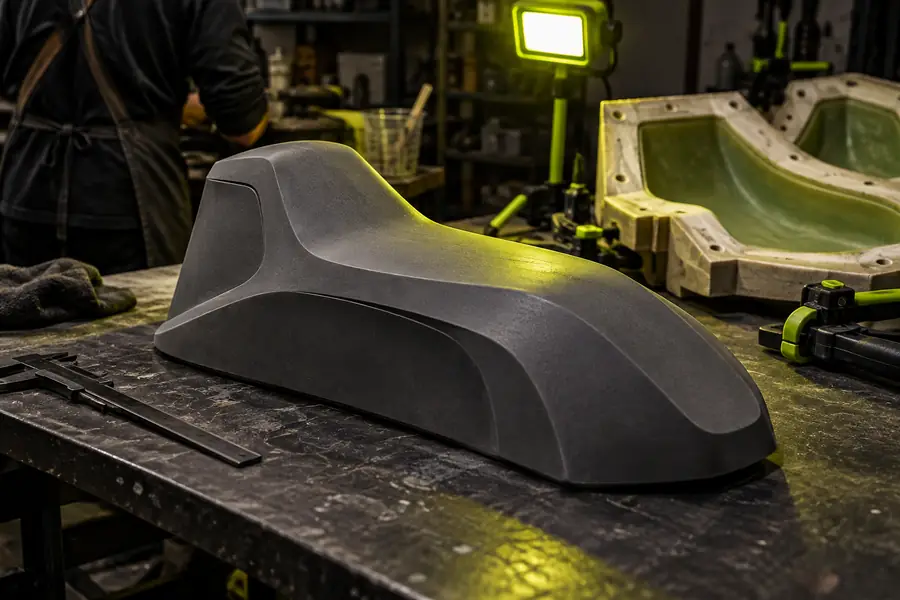
Three-dimensional reference form used to consider a mold Source shape
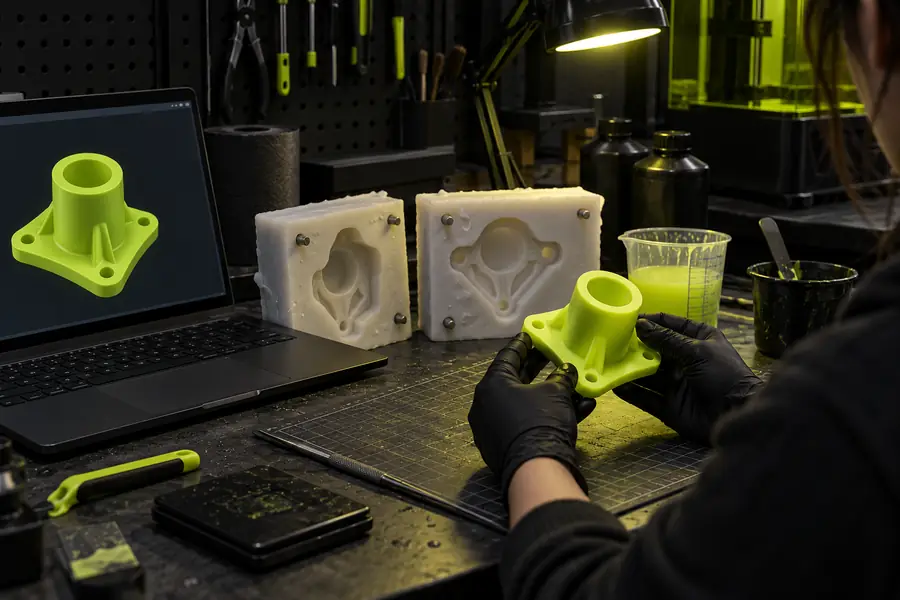
Illustration associated with planning a mold from a GLB model Mold-planning concept
These images illustrate the planning distinction; they do not document a verified conversion or a fabrication-ready output.

Explore a mold workflow with clear expectations

Bring a shape and a release plan

Glbtomold points you toward an industrial 3D studio to explore the next design step. Describe the object, its intended mold material, and any suspected undercuts. Before relying on a result, verify the available input tools, editing controls, export permissions, and suitability for your fabrication process.

Explore mold design
  • Inspect the source geometry
  • Plan the parting direction
  • Verify the usable output

Questions about free online mold workflows

Some browser-based tools may help you inspect or develop a mold concept, but this page cannot confirm a complete free workflow through production-file export. Check the specific service's current tools and terms, then test a simple model before relying on it.

No. A GLB describes a 3D scene or model; it does not specify the parting line, release direction, clearance, or mold features. Those decisions need to be made and the resulting geometry checked.

First confirm that the mesh has the surfaces you intend to reproduce and identify obvious gaps or undercuts. Then check whether the tool accepts your file and whether its permitted output fits your next fabrication step.

No. STL is a mesh file format, and its contents could be the original object, a rough cavity, or completed mold parts. Inspect the geometry for a sound split, sufficient structure, and any features your process requires.

Rendering can hide open edges, overlapping surfaces, or disconnected shells. Inspect and repair the mesh, then retry with simplified geometry to determine whether the source model is causing the failure.

Open 3D studio
Open 3D studio