Glbtomold
Open 3D studio
English

GLB viewing guide

Learn how to open glb file assets on your computer

If you need to know how to open glb file assets, start with a compatible 3D viewer or import the model into Blender. This guide covers what to check before opening it, the steps for each route, and fixes when the result looks wrong.

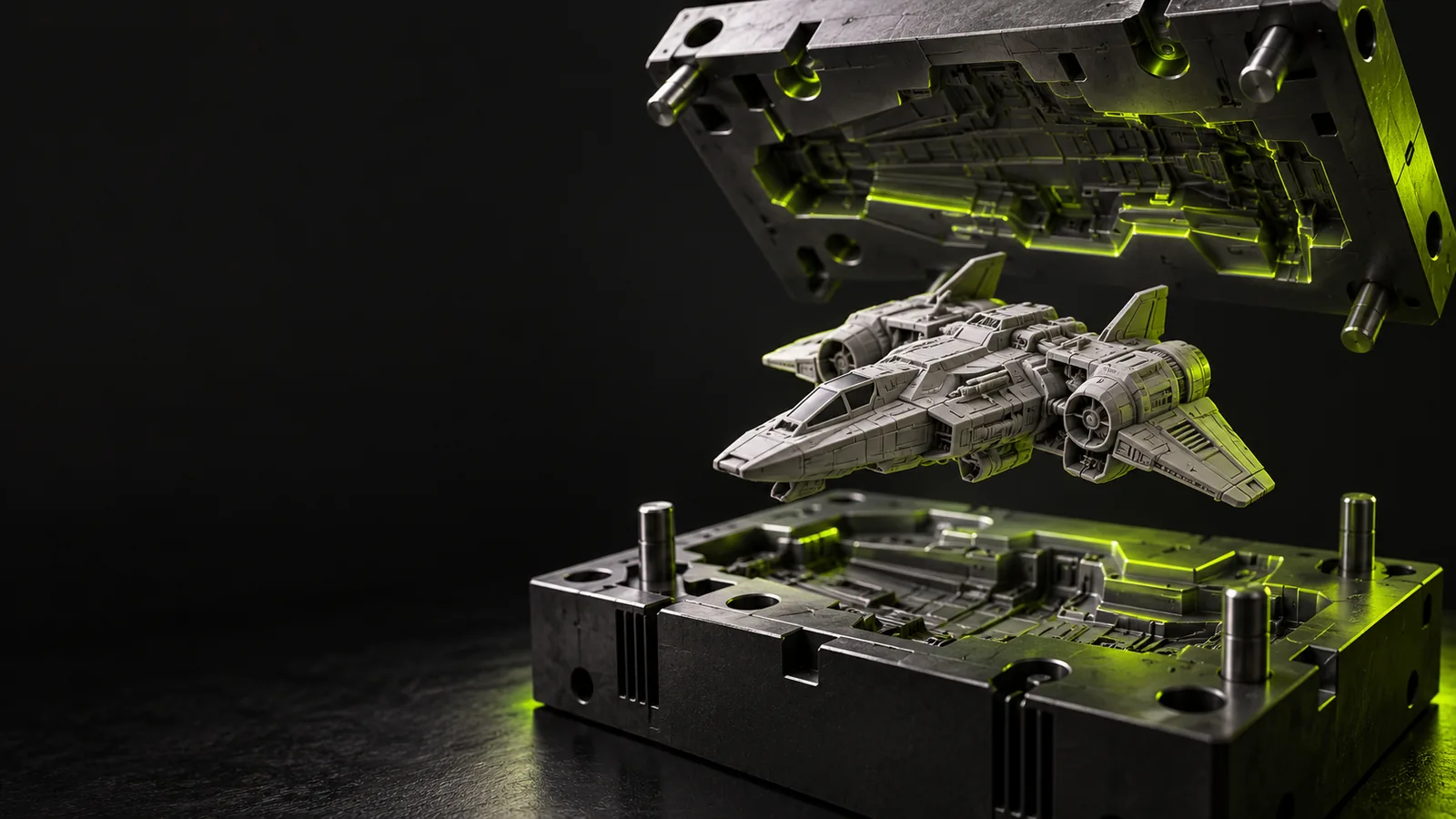
Three-dimensional model shown in Glbtomold site imagery

prerequisites

Have the original .glb file available locally and decide whether you only need to inspect it or also need to edit its geometry.

common errors and fixes

Opening a file confirms that an application can read it; it does not prove that its geometry or materials are ready for every downstream task.

The file will not load

A .glb extension alone does not establish that the file contains valid GLB data. An interrupted download, an empty file, or a different format given the wrong extension can stop an import before the model appears.

Workaround

Check that the file has a plausible size, download or export it again from its source, and try a second GLB-capable viewer. Keep the original untouched while testing copies.

The scene opens but looks empty

The model may be outside the initial camera view, extremely small or large, or hidden within the scene. In Blender, a successful import can add objects without placing them where the current viewport is looking.

Workaround

Inspect the scene's object list, select an imported mesh, and frame the selection. If it appears at an unexpected scale, verify the source export settings before changing dimensions.

Materials look different

A GLB may contain material and texture data, but applications do not always display lighting and shading identically. A gray preview is not, by itself, evidence that the mesh is missing.

Workaround

Switch to a material-aware viewport, check the imported material assignments, and compare the file in another viewer before rebuilding textures.

The model opens but is not fabrication-ready

Viewing a surface does not make it watertight, dimensionally accurate, or suitable for a mold. Thin walls, gaps, intersecting faces, and undercuts can remain invisible from a single camera angle.

Workaround

Inspect the mesh from multiple angles and run geometry checks in an appropriate modeling tool before using it for printing or mold planning.

numbered steps

Use a browser-based GLB viewer for a quick look, or use Blender when you need an object list, editable geometry, and closer inspection.

  1. 1

    Choose where to inspect the file

    For a quick visual check, choose a viewer that explicitly supports GLB and follow its file-opening instructions. For closer inspection, install or launch Blender. If the model is confidential, check a web viewer's upload and retention terms before submitting it; a local application avoids sending the file to that viewer.

  2. 2

    Open or import the GLB

    In Blender, choose File, then Import, then glTF 2.0, and select the .glb file. In a compatible viewer, use its open-file or upload control. Wait for the scene to load before deciding that nothing happened, particularly with larger files or scenes containing many objects.

  3. 3

    Find the model and inspect it

    Rotate and zoom the view to examine the complete shape. In Blender, look for new objects in the Outliner, select one, and frame the selection if the viewport seems blank. Check whether expected parts, colors, and textures appear rather than relying only on the initial camera angle.

  4. 4

    Save a working copy if you will edit

    Keep the source GLB unchanged. In Blender, save a separate project before adjusting scale, materials, or geometry so you can return to the imported state. If your next application needs a different format, confirm its requirements and inspect the exported result instead of assuming that a successful export preserved everything.

advanced tips

Move from a visible model to a considered mold concept

Once the GLB is visible, inspect the part's scale, orientation, and separate pieces before considering a parting line. Check for deep recesses and other potential undercuts, and distinguish decorative surface detail from geometry that must transfer into a physical mold. Glbtomold links to an industrial 3D studio for exploring a subsequent workflow; opening a file or viewing a concept is not a substitute for validating draft, tolerances, material behavior, and manufacturability.

Explore industrial studio
  • Keep an unchanged copy of the source GLB.
  • Verify dimensions against a trusted reference.
  • Review geometry before committing to fabrication.

tutorial FAQ

Blender can import GLB through its glTF 2.0 importer, and GLB-capable 3D viewers can display it for inspection. Choose Blender if you need to examine individual objects or modify the scene. Check a viewer's file-handling terms before uploading a confidential model.

Yes, if you use a browser-based 3D viewer that accepts GLB files; the browser alone may not present a useful 3D view when you simply navigate to a local file. A web viewer is convenient for checking appearance, but it may upload your model. Use a local application when that transfer is unsuitable.

Open Blender and select File, Import, then glTF 2.0. Select your .glb file and complete the import. If the viewport still appears empty, look for imported objects in the Outliner, select one, and frame it in the viewport.

The geometry may be outside the current view, at an unexpected scale, or absent because the import failed. Check the scene's object list first, then frame an imported mesh and inspect its dimensions. If no objects were added, try a fresh copy of the file or test it in another compatible viewer.

First check whether the application is displaying materials rather than a solid-color preview. If materials are enabled but the result still differs, compare the GLB in another viewer and inspect its imported material assignments. Lighting and material support can vary between applications, so a different appearance does not always mean the model's surfaces are missing.

No. A viewer shows what the model looks like, not whether its mesh is watertight, its dimensions are correct, or a mold can release the part. Check geometry, scale, and the requirements of the intended manufacturing process separately.

Open 3D studio
Open 3D studio