From screen to object
A practical glb file 3d print workflow for makers
A GLB can look complete on screen while its geometry is unsuitable for a printer. Check the mesh, choose a print-oriented format, then verify the result in a slicer. If the object is intended for casting, plan the mold as a separate design task.
Why a visual GLB can fail at the printer
The glb file 3d print problem is usually not whether software can read the file. It is whether the geometry encloses a physical object that can survive slicing and fabrication.
Three workflows from GLB asset to physical part
Choose the route that matches the object. A display model, a repaired mesh, and a casting master need different checks even when they begin with the same GLB.
-
1
Print a closed mesh
Import the GLB into a mesh editor and inspect its actual geometry rather than its rendered appearance. Confirm that the intended object has closed surfaces, consistent face orientation, sensible scale, and enough thickness. Export a print-oriented mesh, open it in your slicer, and inspect every layer before sending it to a printer.
-
2
Repair a visual asset
If the model is made of separate shells, decorative planes, or intersecting parts, duplicate it before editing. Remove geometry that should not print, join or rebuild the intended volume, and resolve open boundaries and self-intersections. Recheck small details at the planned physical size; a feature visible on screen may vanish in a sliced layer.
-
3
Make a casting master
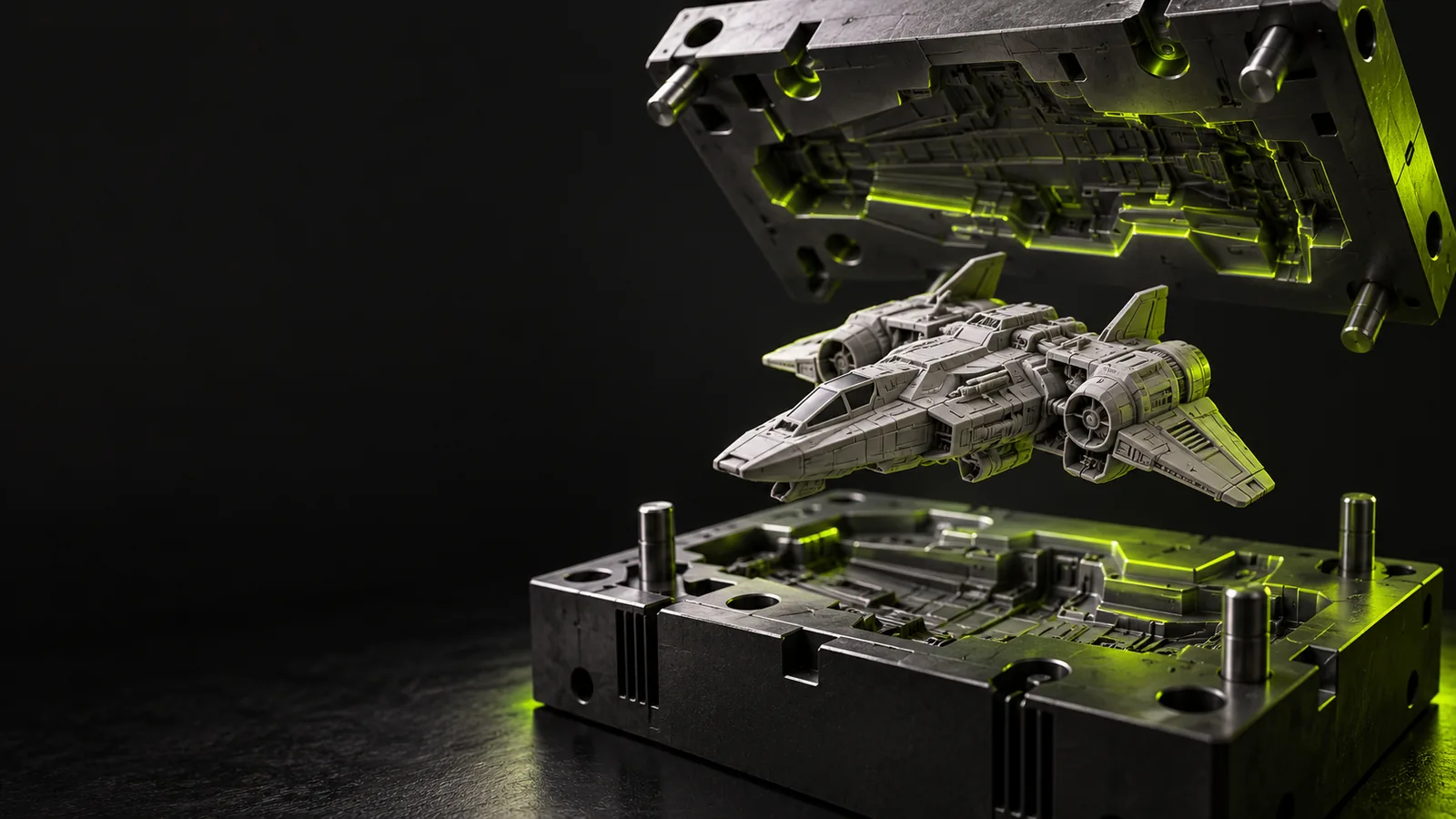
When the final part will be cast, first prepare a printable master or pattern from the asset. Then design the mold around that master, considering the parting plane, undercuts, alignment, pour opening, and material clearance. Treat the mold as new geometry: exporting the original GLB alone does not create mold halves.
Example output: what changes before slicing
Imagine a textured figurine supplied as a GLB. The useful output is not merely a differently named file; it is a checked solid that a slicer can interpret at the intended size.
- Visual GLB asset
- Print-prepared figurine
Primary purpose
Visual GLB asset
Displays a recognizable 3D scene or object
Print-prepared figurine
Describes the surfaces of a physical part
Surface appearance
Visual GLB asset
May rely on textures and materials for visible detail
Print-prepared figurine
Needs geometric detail where physical detail matters
Mesh boundaries
Visual GLB asset
May contain open edges or single-sided surfaces
Print-prepared figurine
Intended solid has closed boundaries
Separate pieces
Visual GLB asset
Can include overlapping or disconnected objects
Print-prepared figurine
Pieces are deliberately joined or arranged as separate prints
Dimensions
Visual GLB asset
May have no confirmed real-world scale
Print-prepared figurine
Has dimensions checked against the intended build size
Thin features
Visual GLB asset
Can look substantial because of shading
Print-prepared figurine
Are checked against the chosen process and material
Final check
Visual GLB asset
Looks correct in a 3D viewer
Print-prepared figurine
Produces plausible layers in a slicer preview
Material and process checks before fabrication
Design the mold as well as the model
A clean slicer preview does not establish that a part is safe or suitable for its end use. Follow the printer, resin or filament, and post-processing instructions for your equipment. For casting, check compatibility between the master, release agent, mold material, and casting material; account for heat, ventilation, and curing requirements. Glbtomold can be a starting point for exploring an industrial mold concept, but a concept still needs dimensional review and a process-specific test before fabrication.
Explore mold design- Inspect the sliced geometry before printing
- Check material guidance for the intended use
- Test fit and release on a small prototype
GLB printing questions
That depends on the software in your printing workflow; do not assume a printer accepts GLB as a job file. Open the model in a compatible editor or slicer, verify the geometry, and use the file and machine instructions required by your setup.
A viewer can display textures, open surfaces, and overlapping shells without requiring a printable solid. Inspect for holes, reversed faces, intersections, and features too thin for your chosen process. Then review the slicer’s layer preview, not just its shaded model view.
Conversion can produce a file your slicer reads, but it does not automatically repair the source mesh. Check scale, closed surfaces, and disconnected parts after export. Texture-based color or detail may also be absent from the resulting physical geometry.
Decide whether they should form one part or print as separate pieces. Arrange, join, or repair them intentionally, and check that no accidental intersections create confusing slice results. Keep a copy of the original asset before changing its mesh.
No. A printable model can serve as a master, while a mold requires geometry that forms a usable cavity and can release the finished part. The parting plane, undercuts, alignment, and material behavior all need their own review.