Glbtomold
Open 3D studio
English

Format workflow

Understand glb to obj before you export

A glb to obj workflow moves mesh geometry from a compact scene package into a widely supported interchange format. Before exporting, identify which textures, materials, scene relationships, and scale settings your next application needs.

Check available export options in the app
Glbtomold landing illustration of a 3D modeling workflow

GLB and OBJ: a structural comparison

GLB can package an entire glTF scene in one binary file. OBJ primarily describes polygon geometry; related material definitions and images are usually separate files.

GLB
OBJ

Main role

GLB

Binary container for a glTF scene

OBJ

Text-based polygon mesh interchange

Geometry

GLB

Mesh attributes stored in binary buffers

OBJ

Vertices, texture coordinates, normals, and faces written as text

Materials

GLB

glTF material properties can be packaged in the file

OBJ

Material assignments may refer to a separate MTL file

Texture images

GLB

Images may be embedded in the GLB

OBJ

Images are typically separate files referenced through materials

Scene structure

GLB

Can contain nodes, transforms, and multiple meshes

OBJ

Can group geometry but does not preserve the full glTF scene model

Animation

GLB

Can carry skeletal or other glTF animations

OBJ

No equivalent built-in animation representation

Delivery

GLB

Often portable as a single file

OBJ

May require an OBJ, MTL, and image files together

What can disappear during conversion

An OBJ export is not a copy of every GLB feature. Match the output to the receiving application's needs, and keep the original GLB until you have checked the result.

3D-printing technician

You need the surface shape for fabrication, not animation or scene lighting. Confirm that the exported mesh is closed and has the intended dimensions.

If the destination needs a print-oriented mesh, glb to stl explains why STL may be the more direct handoff.

glb to stl
Texture artist

Your GLB embeds images and uses glTF material properties. OBJ may retain UV coordinates, but the receiving app must also find and interpret any separate MTL and image files.

If the receiving workflow depends on richer scene data, glb to fbx covers a different export path.

glb to fbx

Mold designer

You need a stable mesh to inspect or rebuild as a manufacturable part. Check normals, disconnected shells, and scale before using an OBJ as a reference.

For a geometry-only fabrication handoff, glb to stl compares another common destination format.

glb to stl

The tool block: prepare the right handoff

Start with the mesh you actually need

Open the GLB in a 3D application that supports it, inspect the meshes and materials, then choose OBJ export if your receiving software calls for it. Preserve the original file and keep any exported MTL and texture images beside the OBJ. Glbtomold links to an industrial 3D studio for exploring your model workflow; confirm its available import and export options before relying on a particular format.

Explore 3D studio
  • Identify the mesh and scene objects to carry forward
  • Decide whether separate material and image files matter
  • Verify the exported files in the destination application

How to verify the result afterward

The images below are illustrative site examples, not proof of a completed export. Use these checks on your own source GLB and resulting OBJ in the receiving application.

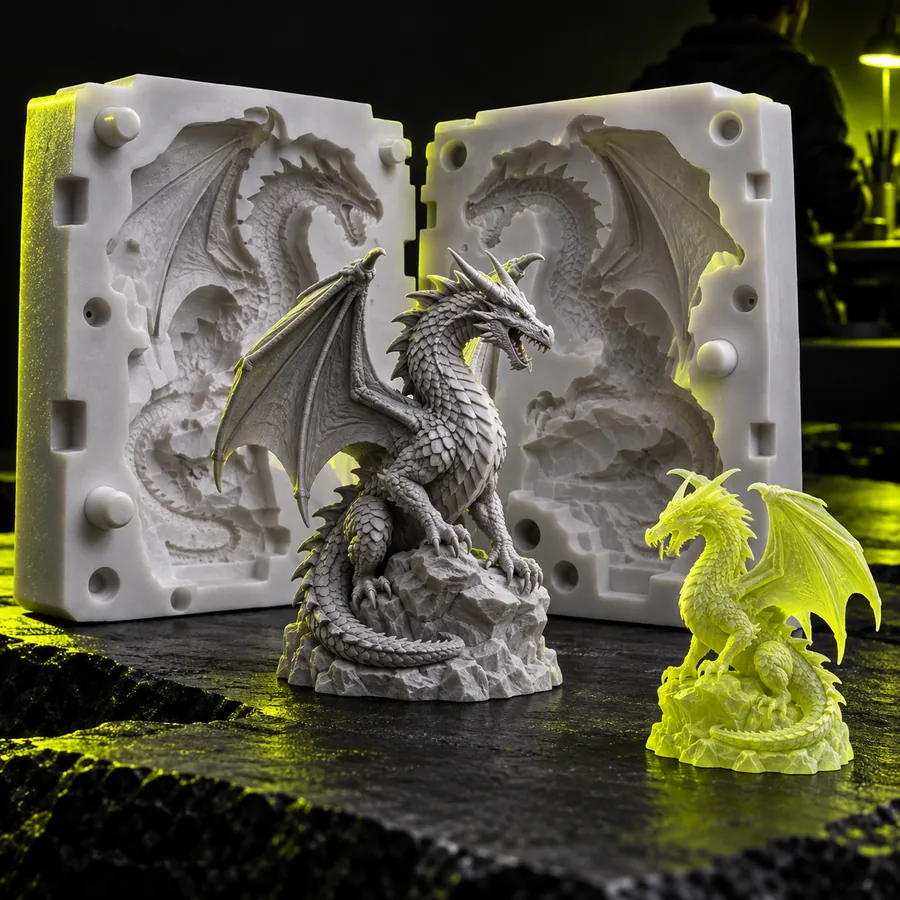
  • Glbtomold example 3D output used to illustrate a shape check Shape check
    1
    Input: source GLB mesh. Compare its overall silhouette, holes, and separate parts with the imported OBJ.
  • Glbtomold example 3D output used to illustrate a surface check Surface check
    2
    Input: textured GLB mesh. Inspect UV placement, material assignments, and image paths after importing the OBJ and MTL.
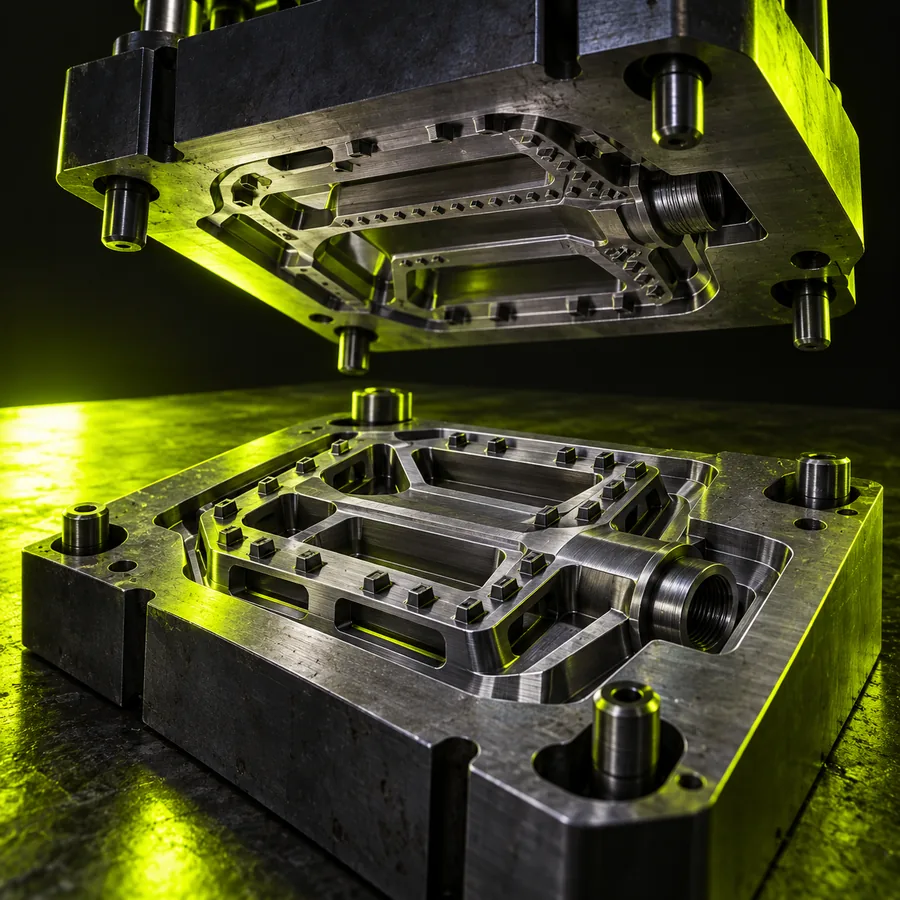
  • Glbtomold example 3D output used to illustrate a scale check Scale check
    3
    Input: dimensioned GLB reference. Measure a known edge in the destination application; OBJ does not define a universal unit.

OBJ conversion questions

Import the GLB into a 3D application that supports both formats, select the mesh or objects you need, and export them as OBJ. Open the exported OBJ in its destination application to check shape, scale, normals, and any companion material files.

The mesh may retain UV coordinates, but OBJ does not package embedded GLB images in the same way. Depending on the exporter, you may need a separate MTL file and separate texture images, then reconnect or adjust materials after import.

OBJ is a static geometry format and does not carry glTF animation data. Keep the original GLB if animation, rigging, or the full scene structure matters to your project.

OBJ has no universal unit declaration, and applications may interpret imported dimensions differently. Compare a known measurement against the source GLB, then set the receiving application's import scale or units accordingly.

An exporter may write only selected objects, visible meshes, or a particular scene. Reopen the GLB, inspect its object hierarchy and export selection, then compare the resulting OBJ against the source before discarding either file.

Open 3D studio
Open 3D studio